The best free audio-to-text converters compared. Upload a file, get a timestamped transcript in minutes, and turn it into blog posts, subtitles, and social content.
Converting audio to text used to mean hours of manual typing or expensive transcription services. In 2026, AI handles it in minutes. Upload a file, get a transcript with timestamps, and export it however you need.
This guide covers how to convert audio to text online for free with Pixelion, and how to get the most out of your transcript.
How Audio-to-Text Conversion Works
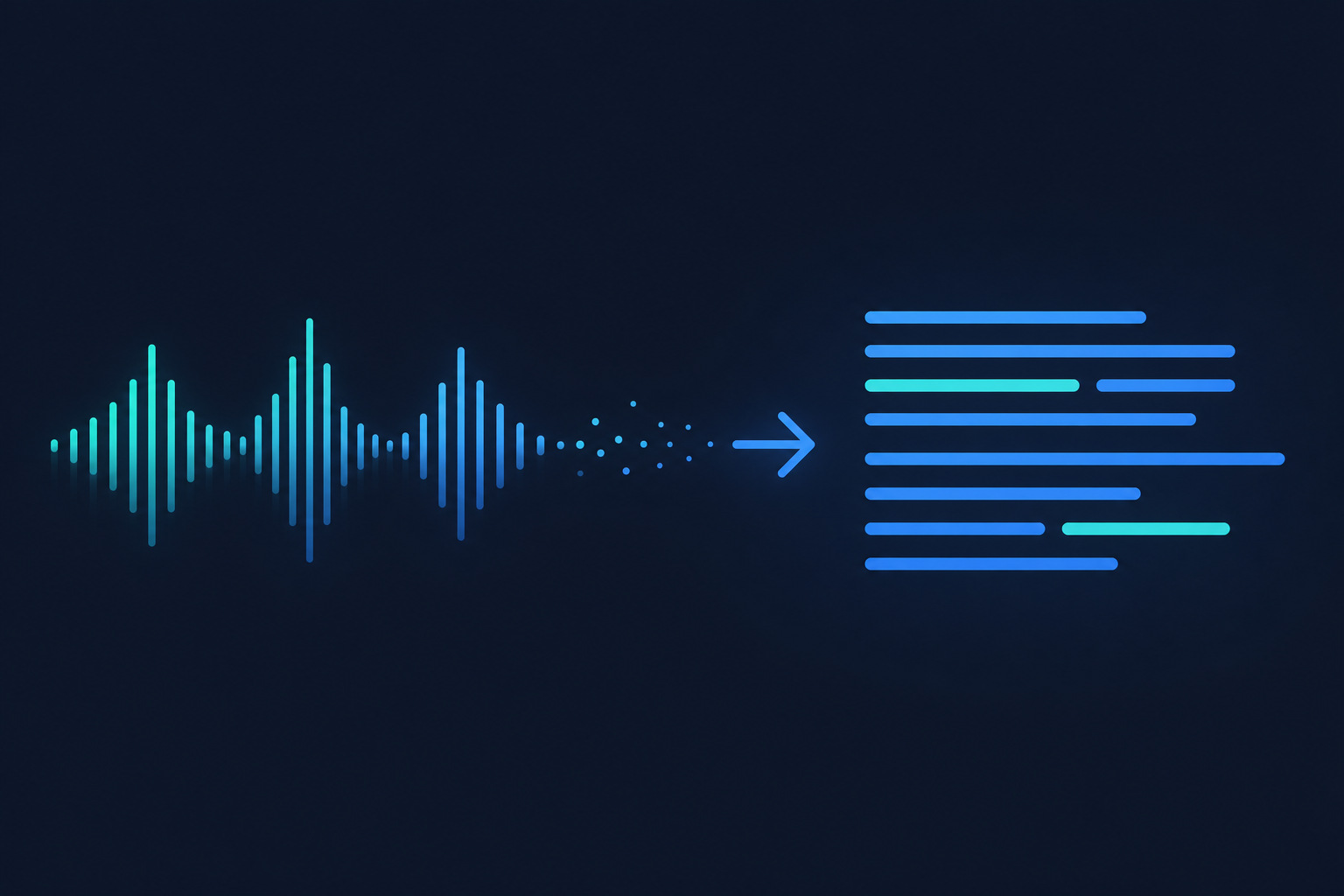
Modern audio-to-text tools use automatic speech recognition (ASR) models trained on millions of hours of audio. You upload a file (MP3, WAV, M4A, FLAC, OGG, or audio extracted from video), and the AI returns a text transcript. Better tools add timestamps, speaker labels, and export options like SRT or VTT for subtitles.
The key differences between tools come down to:
- Accuracy — how well the AI handles accents, background noise, and overlapping speakers
- Speed — processing time relative to file length
- Format support — which audio and video formats are accepted
- Output options — plain text, timestamped text, SRT, VTT, DOCX
- What happens after — can you do anything useful with the transcript beyond copying it?
How to Convert Audio to Text with Pixelion
- Go to pixelion.ai
- Click Upload and select your audio or video file
- Wait for processing (typically 2-5 minutes for a 30-minute file)
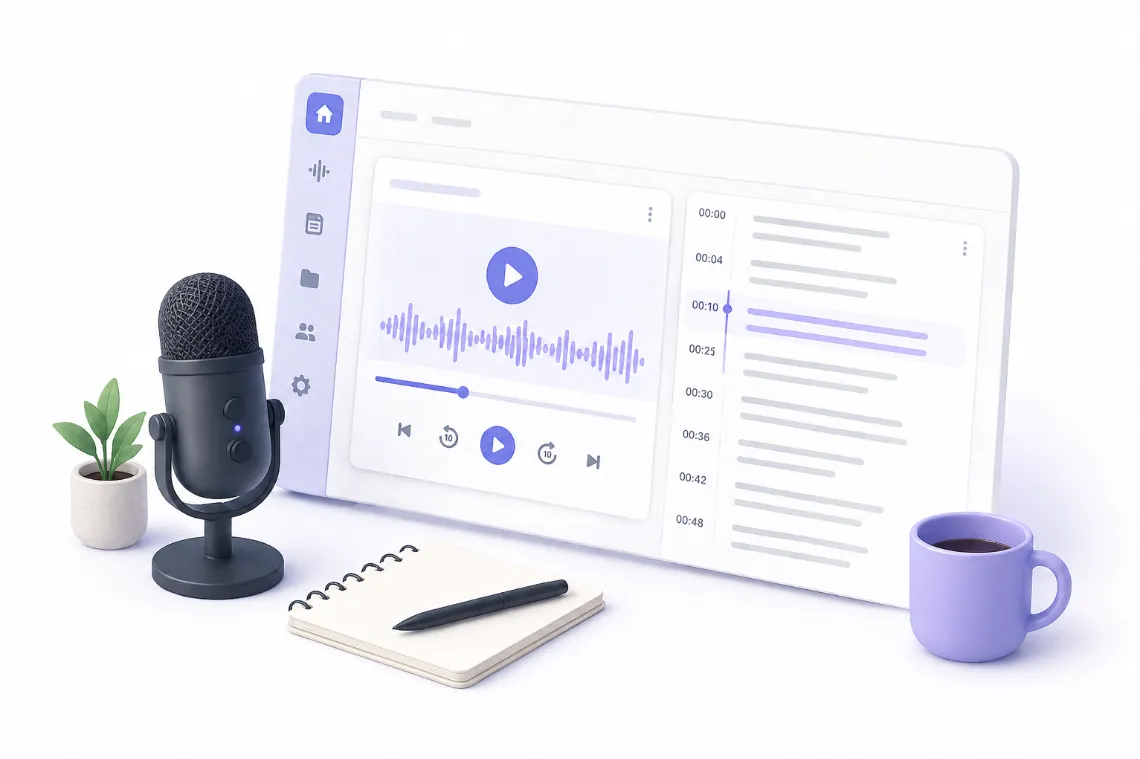
- Review your timestamped transcript
- Click any timestamp to jump to that moment in the audio
- Export as TXT, SRT, or VTT
No account required for basic transcription. Sign in to save your work and access AI content tools.
What to Do After Transcription
Most tools stop at the transcript. That leaves you with a wall of text and hours of manual work to turn it into something useful.
With Pixelion Pro, your transcript becomes the starting point for:
- Blog posts — AI generates a structured article from your transcript
- Social media posts — ready-to-publish content for Twitter, LinkedIn, Instagram, TikTok, and Facebook
- YouTube chapters — timestamped chapter markers for your video description
- Video SEO — optimized titles, descriptions, tags, and thumbnail text
- Summaries — key takeaways in bullet-point format
- Translation — translate your transcript into 50+ languages
This is what separates a transcription tool from a content engine. The transcript is the raw material. What you build from it is what matters.
Tips for Better Transcription Accuracy
- Use a decent microphone and minimize background noise
- Speak clearly and at a moderate pace
- Avoid crosstalk (multiple people speaking simultaneously)
- Use lossless or high-bitrate audio formats when possible (WAV or FLAC over low-bitrate MP3)
- For video files, the audio track quality matters more than video resolution
Frequently Asked Questions
Is audio-to-text conversion accurate?
Modern AI transcription achieves 95-99% accuracy on clear audio in supported languages. Accuracy drops with heavy accents, background noise, or multiple overlapping speakers.
What audio formats are supported?
Most tools support MP3, WAV, M4A, FLAC, and OGG. Pixelion also accepts video formats (MP4, MOV, WebM) and extracts the audio automatically.
How long does transcription take?
Typically 1-5 minutes for a 30-minute file, depending on the tool and server load. Real-time transcription tools like Pixelion Live process audio as it plays.
Can I transcribe in languages other than English?
Yes. Pixelion supports automatic language detection and can transcribe in dozens of languages. You can also re-transcribe a file in a different language if the auto-detection was wrong.