Generate accurate SRT subtitle files from any video using AI. Compare tools, learn the workflow, and export YouTube-ready captions in minutes.
SRT files are the standard subtitle format for YouTube, social media, and video editing software. Instead of typing timestamps and text manually, AI tools can generate accurate SRT files from any video in minutes.
This guide shows how to generate SRT subtitles from video with Pixelion, and how to get the most out of your subtitle files.
What Is an SRT File?
SRT (SubRip Text) is a plain-text subtitle format. Each entry contains a sequence number, a timestamp range, and the subtitle text:
1
00:00:01,000 --> 00:00:04,500
Welcome to this video about content creation.

2
00:00:04,800 --> 00:00:08,200
Today I'll show you how to repurpose video into blog posts.
SRT files work with YouTube (upload as captions), Premiere Pro, Final Cut, DaVinci Resolve, VLC, and most video platforms. They are also easy to edit in any text editor.
How AI Subtitle Generation Works
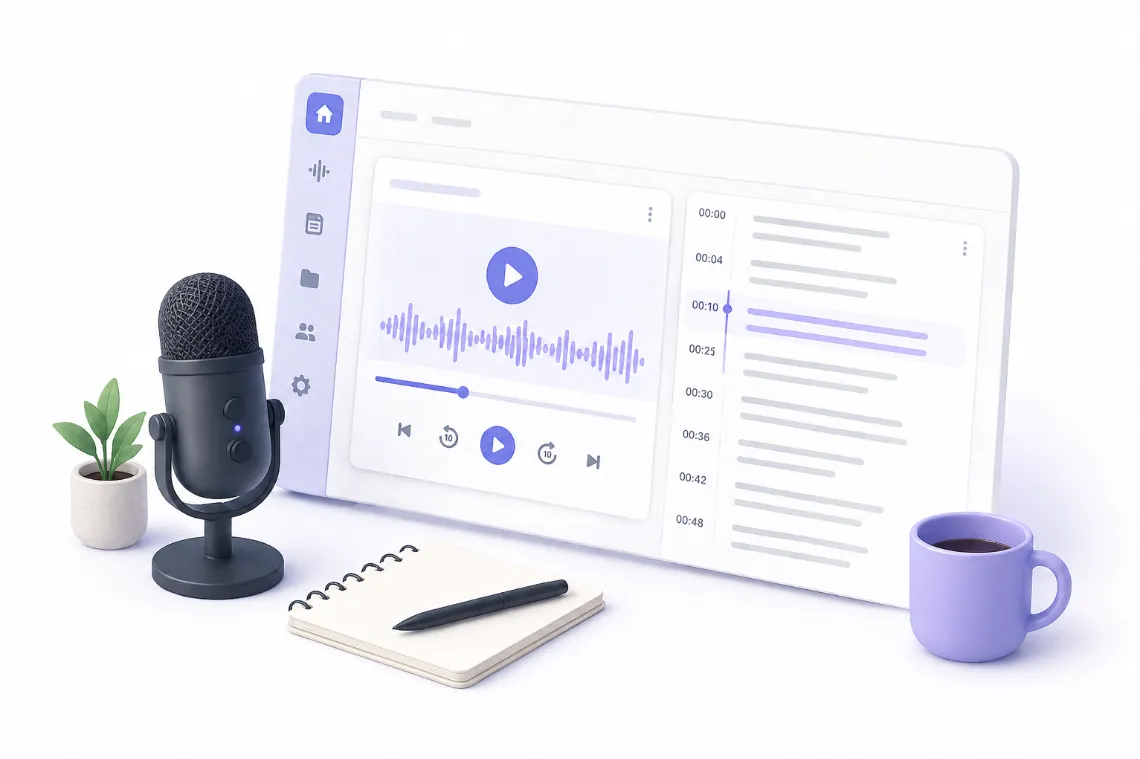
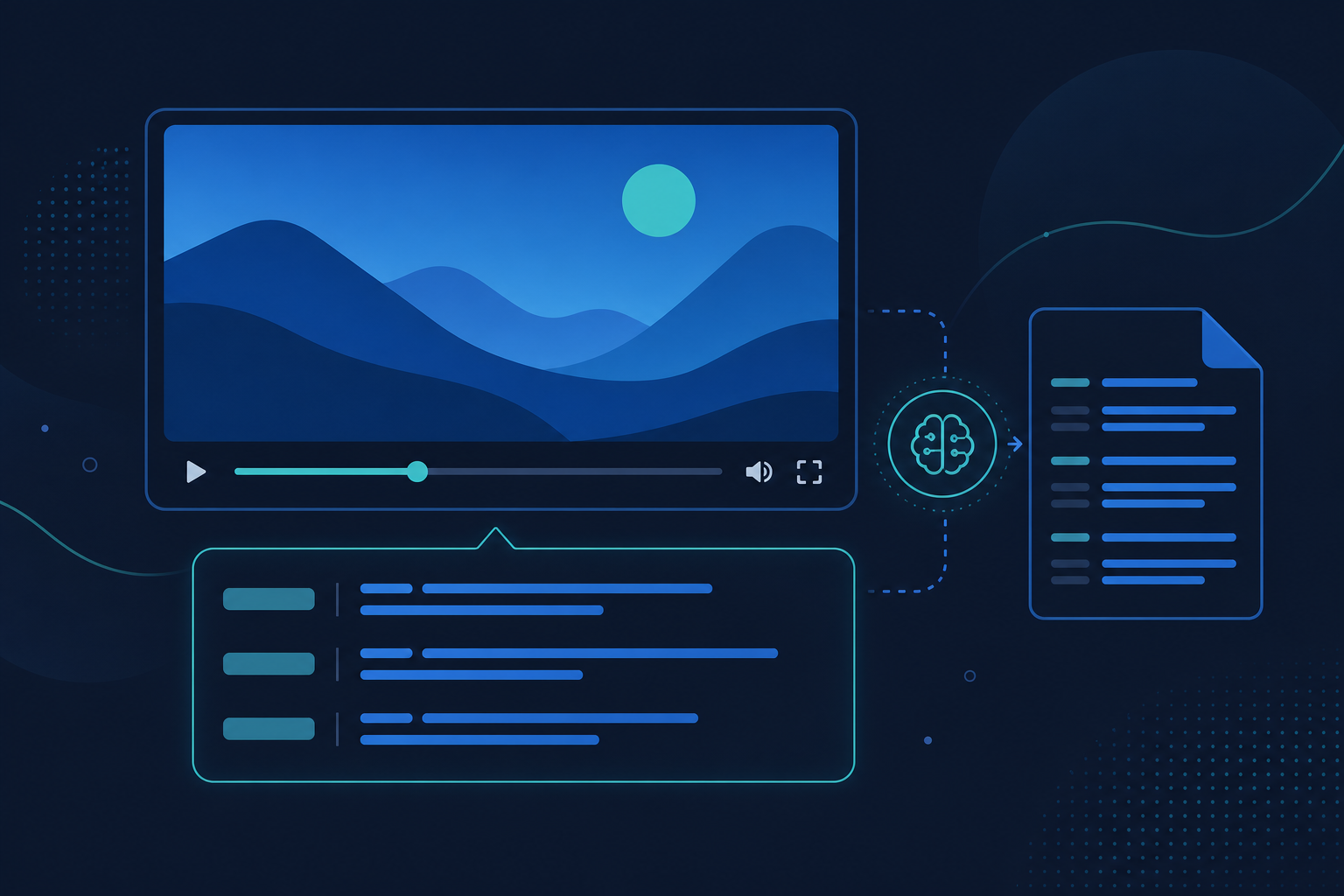
AI subtitle generators use speech recognition to detect spoken words and their exact timing in a video. The process:
- Upload your video (or audio) file
- The AI transcribes speech and maps each word to a timestamp
- Text is grouped into readable subtitle segments (typically 1-3 lines)
- You review and edit if needed
- Export as SRT, VTT, or other subtitle formats
Modern models achieve 95-99% accuracy on clear audio, making manual timing adjustments rare for most content.
How to Generate SRT Files with Pixelion
- Go to pixelion.ai and upload your video
- Wait for transcription to complete (2-5 minutes for most files)
- Review the timestamped transcript and make any edits
- Click Export and select SRT or VTT
- Upload the file to YouTube, your video editor, or any platform that accepts subtitles
The same transcript can also be exported as plain text, or transformed into blog posts, social content, and more with Pro features.
SRT vs VTT: Which Format Should You Use?
| Format | Best for | Styling support | Platform support |
|---|---|---|---|
| SRT | YouTube, video editors, universal compatibility | Basic (bold, italic) | Nearly universal |
| VTT | Web video (HTML5), YouTube, modern platforms | Advanced (positioning, colors) | Browsers, YouTube, most modern players |
Both formats work with YouTube. SRT is more widely compatible with older software. VTT supports more styling options for web-based players. Pixelion exports both.
Tips for Better Subtitle Quality
- Use clear audio. Background music and noise reduce accuracy significantly.
- One speaker at a time. Overlapping dialogue is harder for AI to parse.
- Review proper nouns. Names, brands, and technical terms are the most common errors.
- Keep subtitle length readable. Aim for 1-2 lines per subtitle, max 42 characters per line for comfortable reading.
- Check timing on fast speakers. Rapid speech can cause subtitle segments to overlap or flash too quickly.
Beyond Subtitles: What Else Can You Do with a Video Transcript?
Subtitles are one output. A video transcript is the foundation for much more:
- Blog posts — turn a 10-minute video into a 1,000-word article
- Social clips — pull key quotes for Twitter, LinkedIn, Instagram
- YouTube chapters — auto-generate timestamp markers for your description
- SEO metadata — titles, descriptions, and tags optimized for search
- Translations — reach international audiences without manual subtitle translation
Pixelion does all of this from a single upload. Transcribe once, publish everywhere.