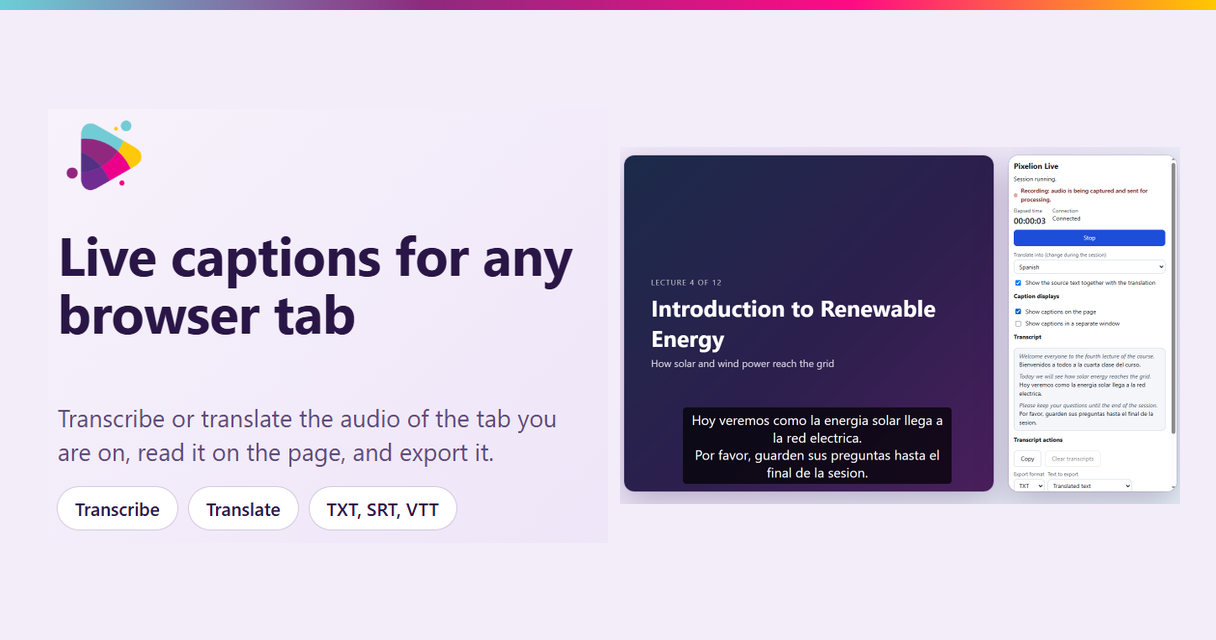
Pixelion Live Captions is a Chrome extension that transcribes and translates any browser tab's audio in real time. Export the transcript or save it to Pixelion.
Pixelion Live Captions is a Chrome extension that transcribes and translates the audio playing in any browser tab, in real time. It is now available on the Chrome Web Store.
Where the Pixelion web app turns a finished recording into publish-ready content, Live Captions works on audio as it plays. Open a lecture, a webinar, a meeting, or a video in a tab, start a session, and the words appear as captions and as a running transcript you can keep.
Watch the demo:
What it does
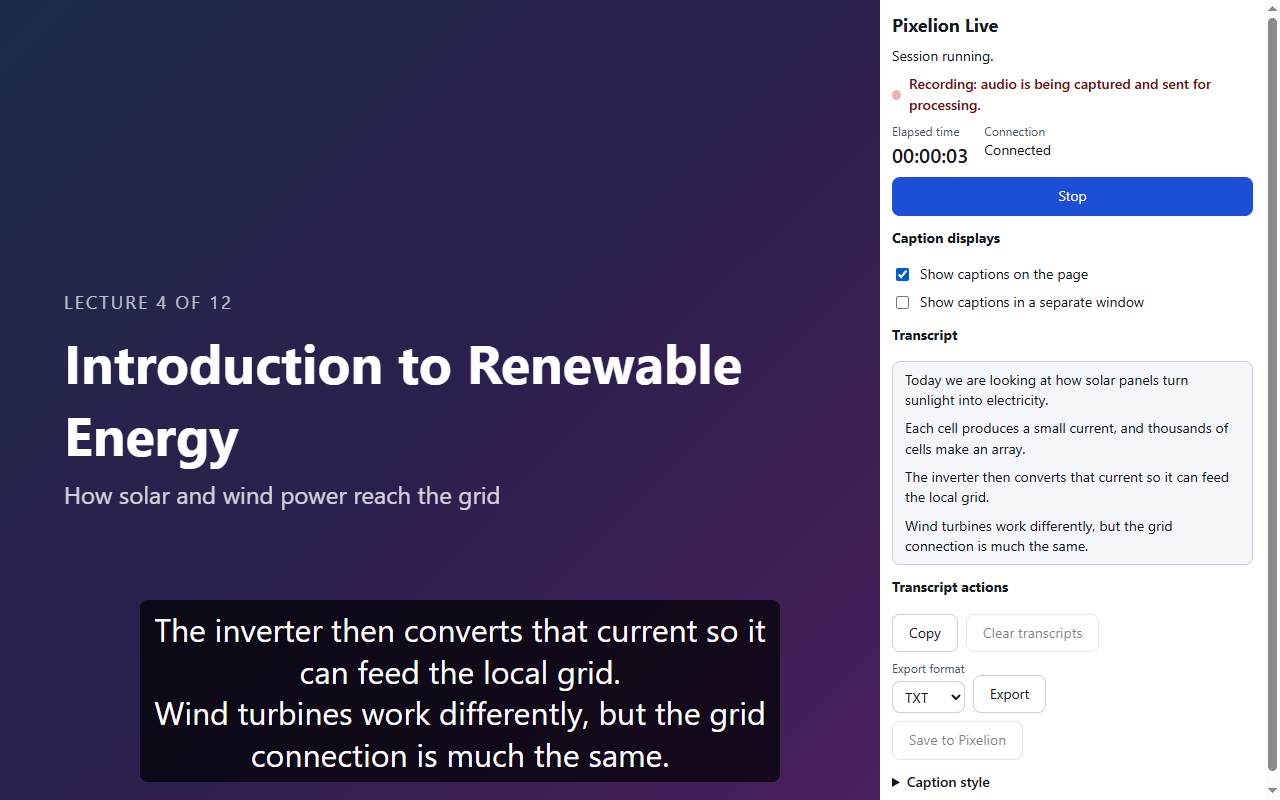
The extension captures the audio from the current tab and streams it for transcription. As people speak, you see captions overlaid on the page, in a separate window, or both, and a live transcript building in the side panel, paragraph by paragraph.
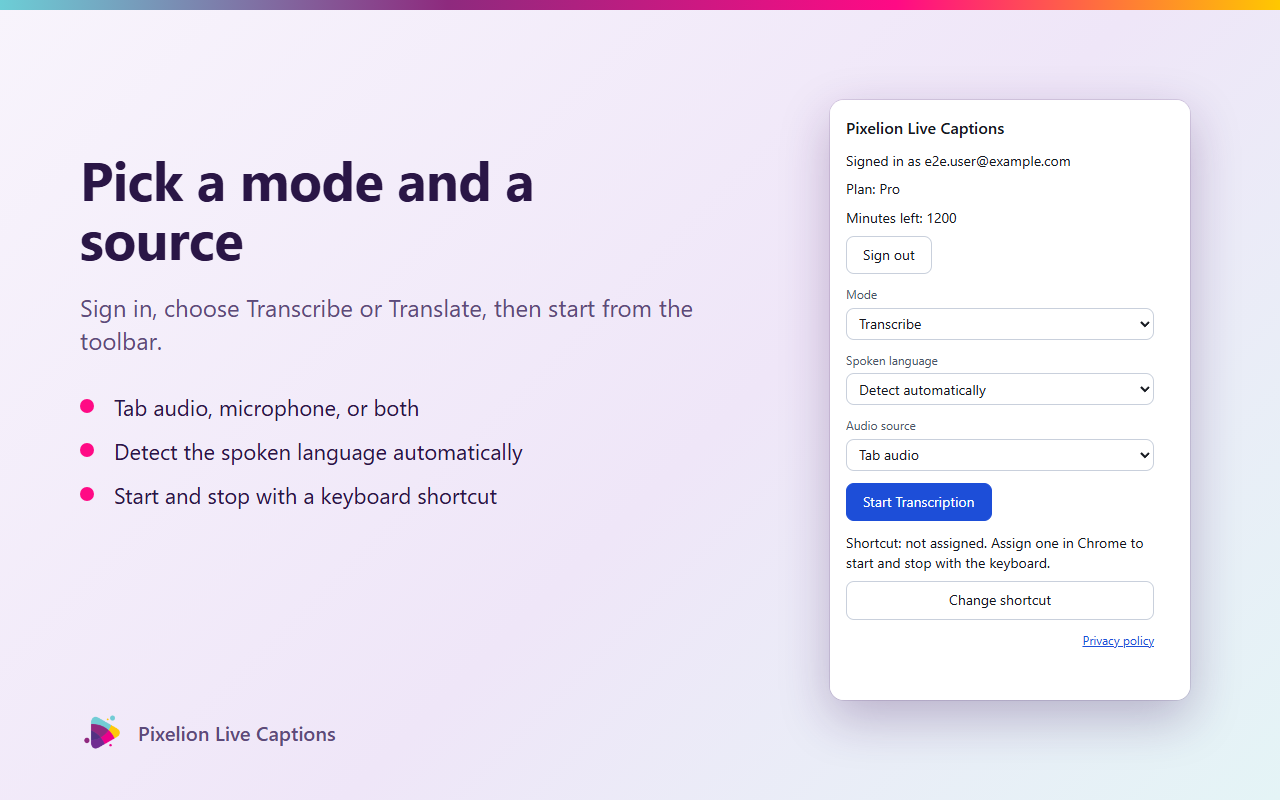
You pick a mode before you start:
- Transcribe writes the speech as text in the spoken language.
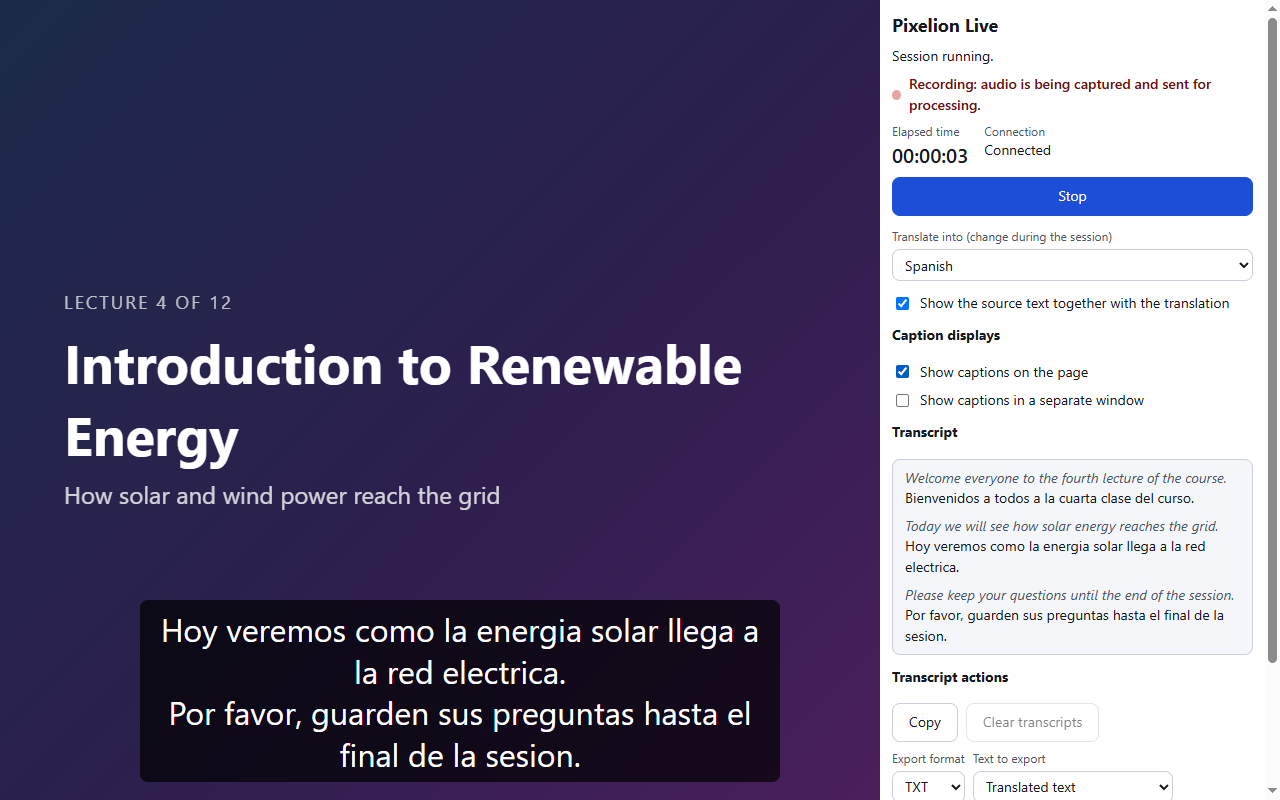
- Translate converts the speech into the language you choose, and can show the original text alongside the translation. You can change the target language mid-session. Translate mode is part of the Pro and Hero plans.
The spoken language can be detected automatically, so you do not have to set it in advance.
Capture tab audio, your microphone, or both
Live Captions reads from the tab you are on, your microphone, or both at once. Tab audio covers the case most tools miss: a video, a webinar, or a call playing in the browser, captioned without a separate recording step. To caption a tab, click the Pixelion toolbar icon on that tab, then start the session.
Keep the transcript
A session is not just captions that disappear. When it ends, the transcript stays in the side panel so you can copy it in one click, export it as TXT, SRT, or VTT, or save it to your Pixelion library.
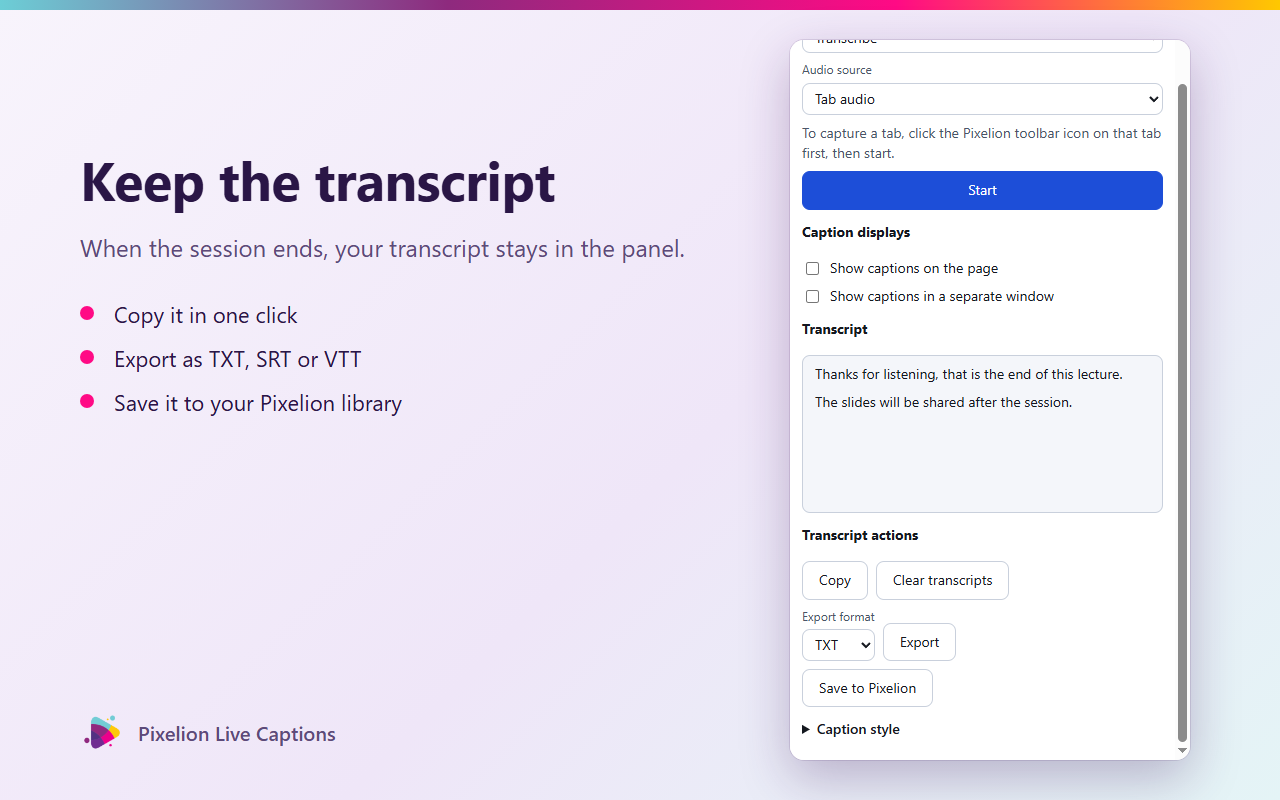
Saving to Pixelion is what connects the two tools. A transcript captured live in the browser lands in the same place as your uploads, ready to turn into a blog post, social posts, chapters, or SEO metadata with the full content suite.
How to install the Chrome extension
- Install Pixelion Live Captions from the Chrome Web Store.
- Sign in with your Pixelion account.
- Choose Transcribe or Translate, pick your audio source, and press Start. You can also assign a keyboard shortcut to start and stop captions without leaving the page.
Who it is for
- Students captioning lectures and saving a transcript to study from.
- Anyone in a webinar or online meeting who wants a readable record afterward.
- Viewers watching video in another language who want a live translation.
- Creators who want a transcript the moment the audio plays, not after a separate upload.
Live Captions is the browser companion to the Pixelion content engine, a Chrome extension that captures the words as they are spoken, so you can turn them into everything else.
Frequently Asked Questions
What does Pixelion Live Captions do? It is a Chrome extension that transcribes and translates the audio playing in any browser tab in real time. Captions appear on the page or in a separate window while a live transcript builds in the side panel, and you can export the transcript or save it to your Pixelion account.
Does it caption tab audio or just my microphone? Both. You can caption the audio from the current browser tab, your microphone, or both at once. Tab audio lets you caption a video, webinar, or call playing in the browser without a separate recording step.
Can it translate speech in real time? Yes. In Translate mode it converts the speech into a language you choose and can show the original text alongside the translation. You can change the target language during the session, and the spoken language can be detected automatically. Translate mode is available on the Pro and Hero plans (including during a trial); the free plan covers live transcription.
Can I export the transcript? Yes. When a session ends, the transcript stays in the side panel. You can copy it in one click, export it as TXT, SRT, or VTT, or save it to your Pixelion library.
Is Pixelion Live Captions free? The extension is free to install from the Chrome Web Store and you sign in with your Pixelion account. Live transcription is available on the free plan and uses your Pixelion transcription minutes (300 per month on Free, 1,200 on Pro). Translate mode is part of the Pro and Hero plans.
How do I start captioning a tab? Open the tab you want to caption, click the Pixelion toolbar icon on that tab, choose Transcribe or Translate and an audio source, then press Start. You can also assign a keyboard shortcut to start and stop captions without leaving the page.
Which browsers does it support? It runs on Google Chrome and Chromium-based browsers that support Chrome extensions and tab capture (Chrome 116 or newer).
Try Pixelion on the free plan, no credit card needed, at pixelion.ai.