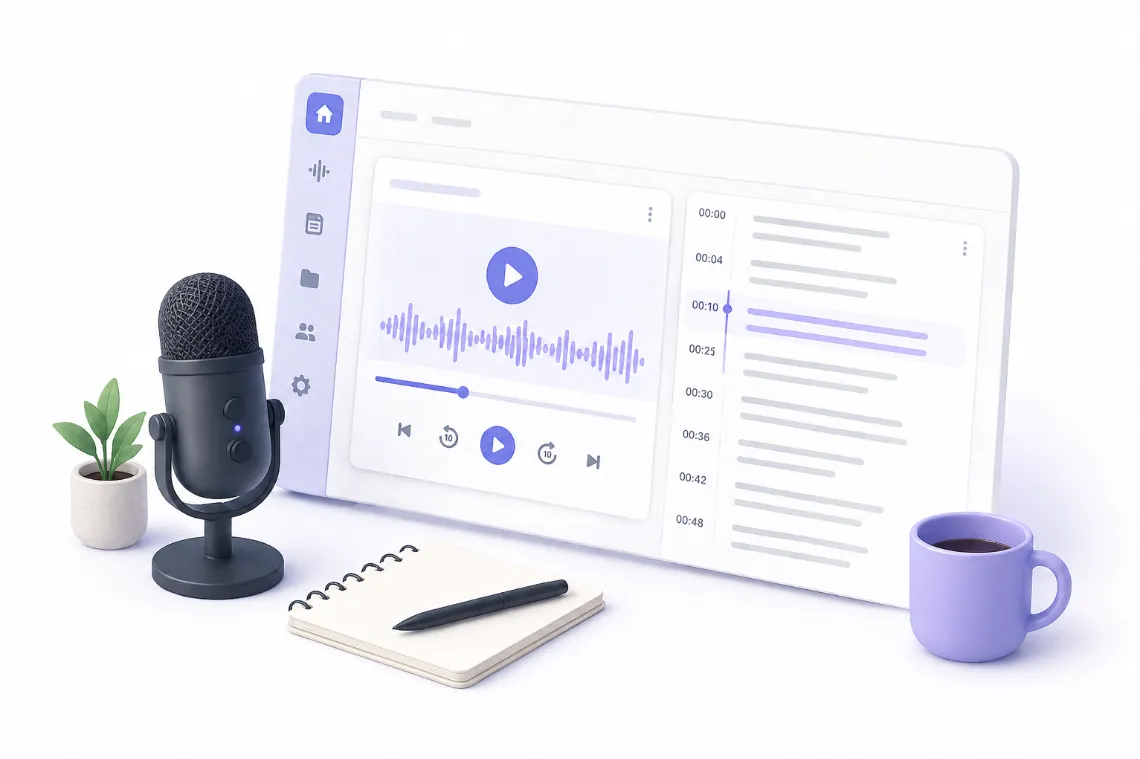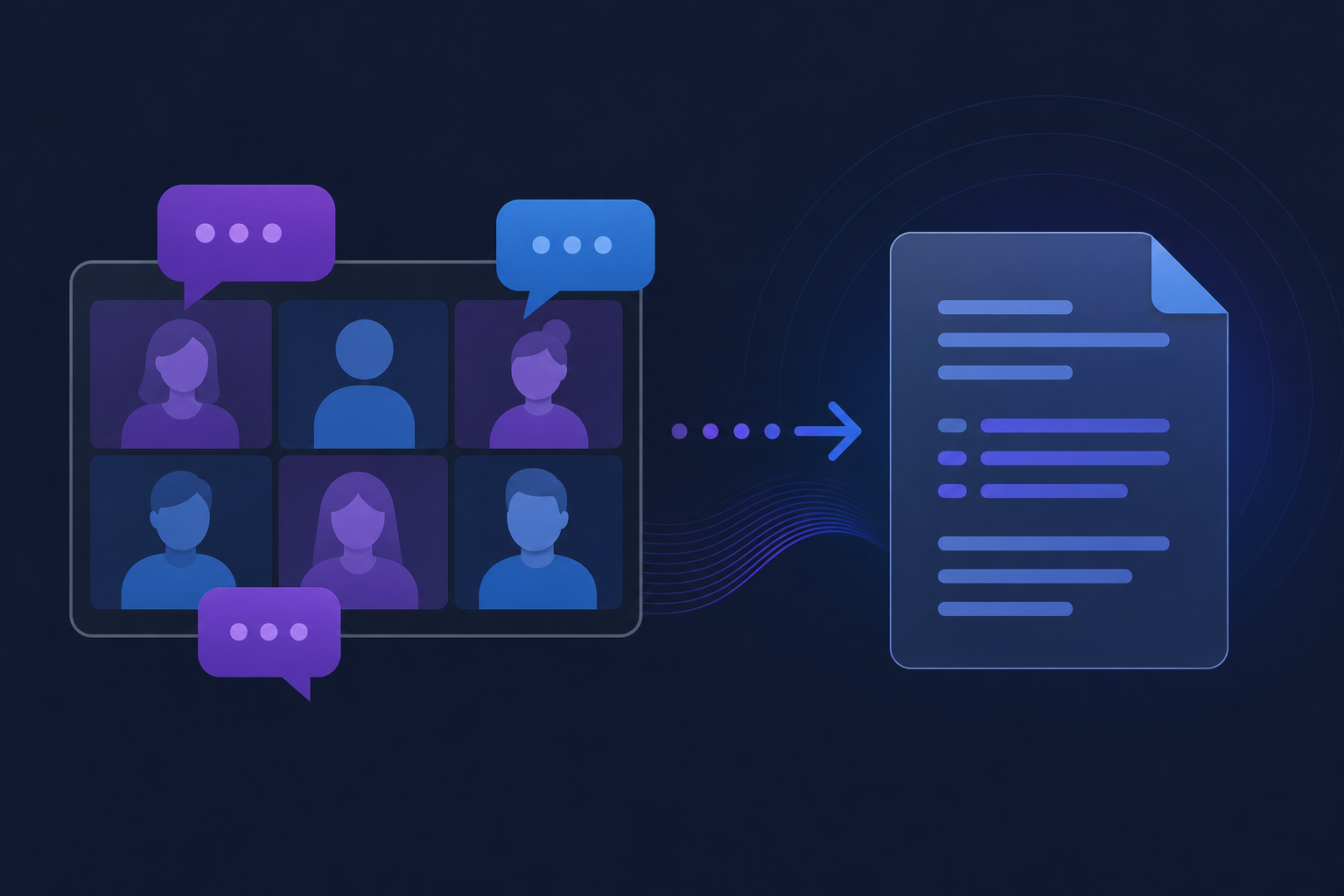
Transcribe Zoom meetings without a bot, without host permission, and without a paid Zoom plan. Pixelion Live captures audio from any app and transcribes in real time.
Zoom's built-in transcription requires a paid Business plan and host permissions configured before the meeting starts. If you are on Zoom's free plan, or you joined a meeting where recording was not enabled, you need a different approach.
Pixelion Live captures audio from any app on your Windows PC, including Zoom, and transcribes it in real time. No bot joins your call. No one knows you are transcribing. And you get a full transcript saved locally when the meeting ends.
Why Not Use Zoom's Built-in Transcription?
- Requires a paid plan. Zoom's AI Companion and cloud transcription require Pro, Business, or Enterprise tiers.
- Host must enable it. If you are not the host, you cannot start transcription.
- Everyone sees the recording indicator. Participants are notified when recording or transcription is active.
- Captions cannot be saved on free plans. As of 2026, Zoom no longer allows live captions to be downloaded on free accounts.
- Limited post-meeting features. You get a transcript, but no content generation tools.
How Pixelion Live Transcribes Zoom (and Any Other App)
Pixelion Live uses Windows audio capture (WASAPI) to record whatever audio is playing on your system. It does not join your meeting as a bot or participant. It simply listens to the same audio coming through your speakers or headphones.
This means:
- Works with any Zoom plan (free or paid)
- No bot visible to participants (nobody knows you are transcribing)
- Works with any video call app (Teams, Google Meet, WhatsApp, Discord, etc.)
- Captures your microphone too (both sides of the conversation)
- Saves audio recording locally (WAV file on your machine)
Step-by-Step: Transcribe a Zoom Meeting with Pixelion Live
- Download Pixelion Live from the Microsoft Store
- Open Pixelion Live and sign in
- Select "Video Conference" from the home screen
- Set audio source to "System + Mic" (captures both the remote speakers and your own voice)
- Click "Start Capture"
- Join your Zoom meeting as normal
- Watch the transcript appear in real time as people speak
- Click "Stop" when the meeting ends
Your transcript and audio recording are saved locally. From the job detail screen, you can edit the transcript, identify speakers, export to PDF/DOCX/PowerPoint, or push to the cloud.
What You Get After the Meeting
- Full transcript with timestamps
- Audio recording (WAV file saved locally)
- Speaker identification (Pro) — color-coded labels for who said what
- AI meeting summary — key points, action items, decisions
- Export options — PDF, DOCX, PowerPoint, plain text
- Cloud sync — push to your Pixelion dashboard for access from any device
Live Translation During Meetings
If your Zoom call includes speakers in a different language, Pixelion Live can translate in real time. Select "Live Translation" mode instead of "Video Conference," choose the source and target language, and see the translation appear alongside the original text.
This works for any language pair among the 12 supported languages: English, Spanish, French, German, Italian, Portuguese, Japanese, Korean, Chinese, Arabic, Russian, and Hebrew.
Tips for Better Meeting Transcription
- Use headphones. This prevents echo and feedback loops that confuse the transcription.
- Select "System + Mic" audio source. This captures both remote participants (system audio) and your own voice (microphone).
- Ask participants to speak one at a time. Overlapping speech reduces accuracy.
- Close background audio. Music players, notification sounds, and other audio apps add noise to the capture.
- Use "Identify Speakers" after recording. Pixelion Live can label who said what based on voice patterns.
Also Works With
Pixelion Live is not limited to Zoom. The same approach works with:
- Microsoft Teams
- Google Meet
- WhatsApp calls
- Discord voice channels
- Slack Huddles
- Phone calls (via your PC)
- Webinars and live streams
- Any app that produces audio on Windows
Get Started
Pixelion Live is available free on the Microsoft Store. The free plan includes 5-minute sessions to test the feature. Pro unlocks full 2-hour sessions, speaker identification, AI summaries, and cloud sync.